
Create your seating plan
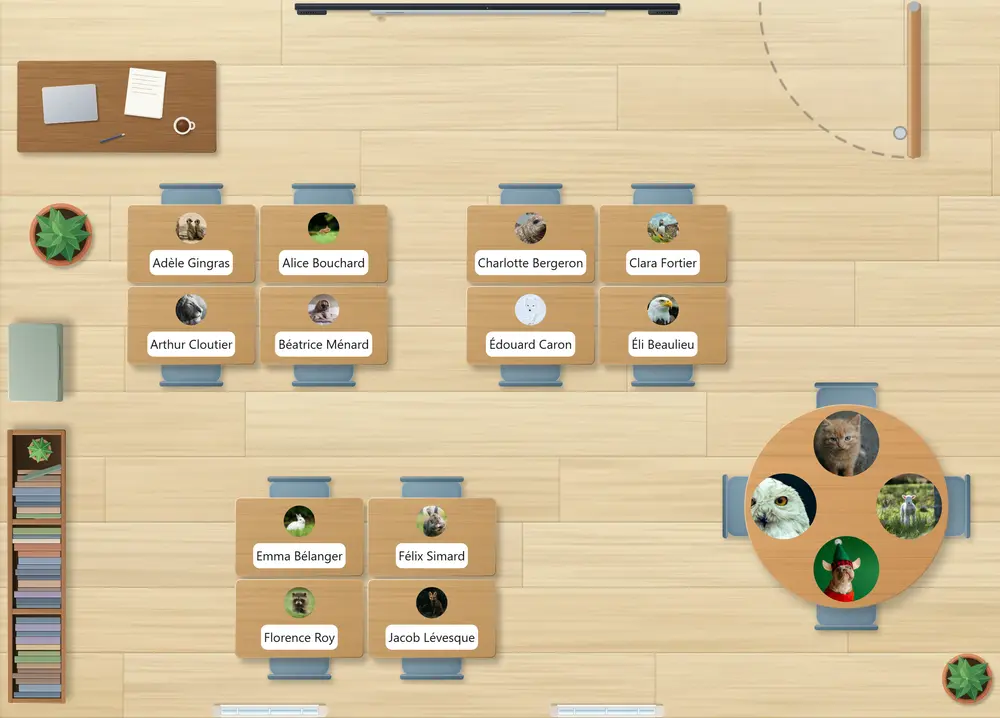
Recreate your room on screen: every student in their seat, with their photo, the furniture and your landmarks, ready to project.

What you need
- BackgroundA colour or a photo for every screen, and animations that play softly behind your widgets.
- ImageA photo, a diagram or a visual instruction in the right spot on the board, in full view of the class.
- Seating planYour class's seating plan created in one go, with each student's photo, then arranged like your classroom.
Your seating plan in 4 steps
1. Choose the floor
On an interactive board, open the Background widget and choose a floor: wood, concrete, tiles, gym… It covers the whole screen and sets the tone for your room.
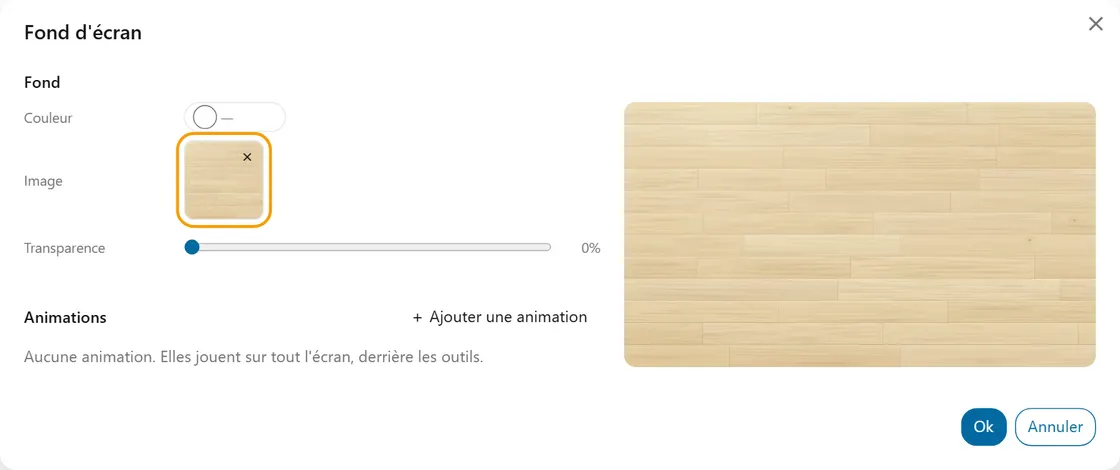
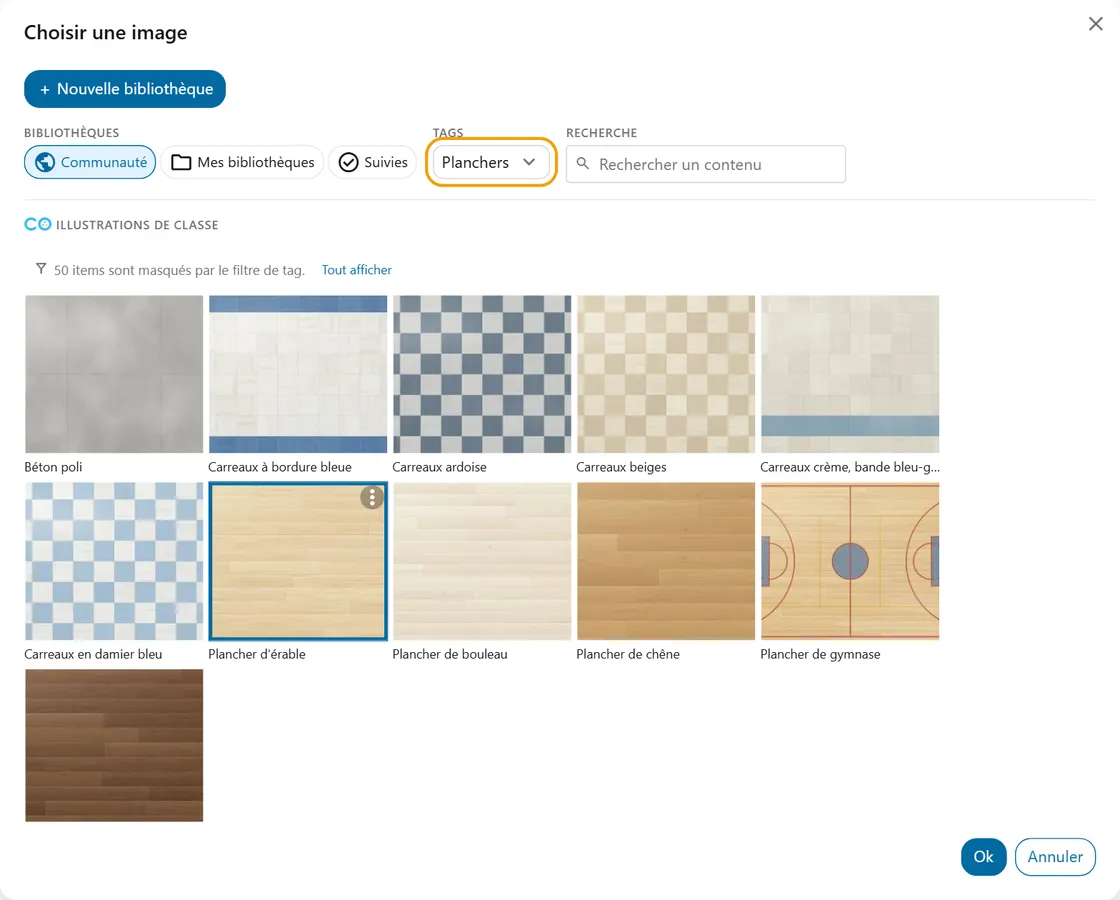
2. Add your landmarks
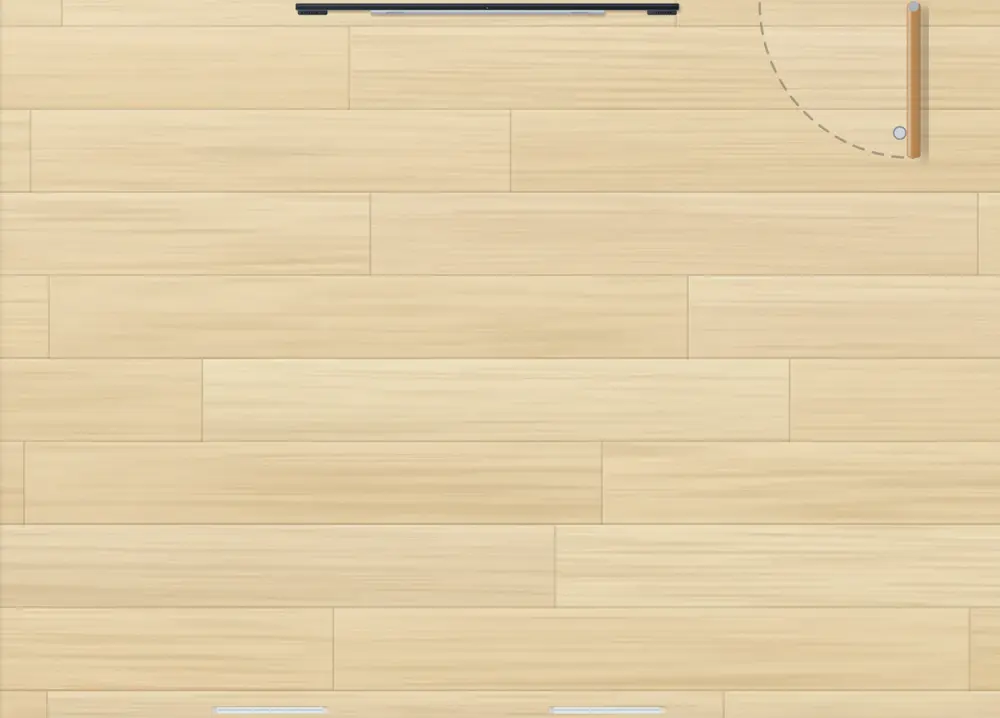
With the Image widget, place what never moves: the board, the door, the windows. When choosing the image, open the "Classroom illustrations" bank: every piece is drawn from above. Prefer your own images? Upload them from the same picker, into one of your libraries.
3. Add the furniture
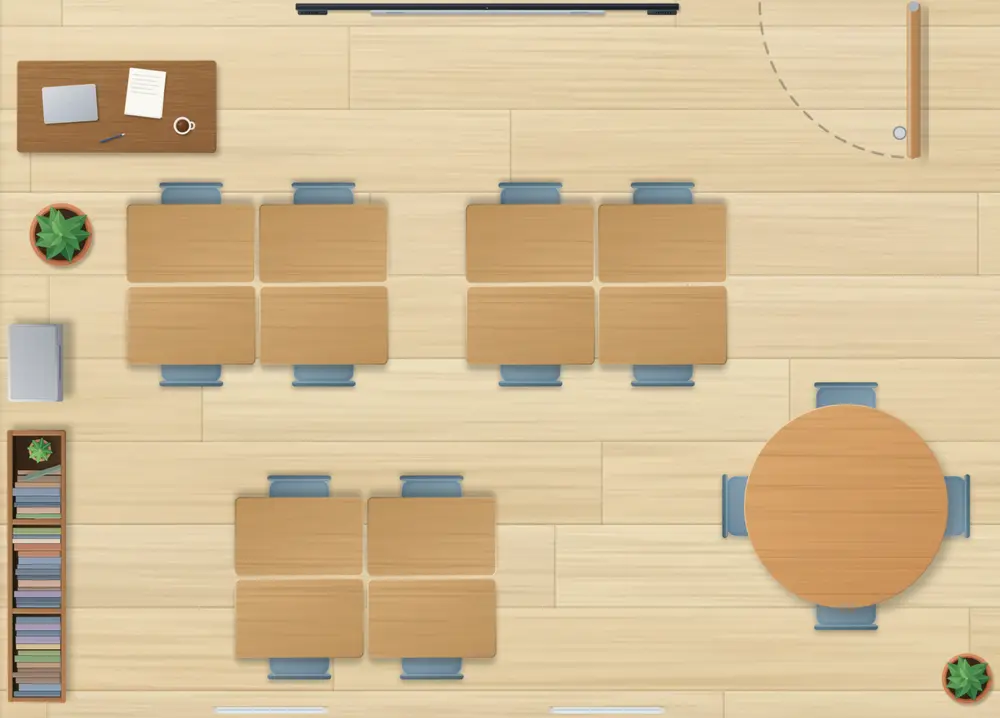
In the same way, add the desks, your own desk, the filing cabinets, the bookcase, a plant. Move and rotate each piece until you recognize your room.
4. Seat the students
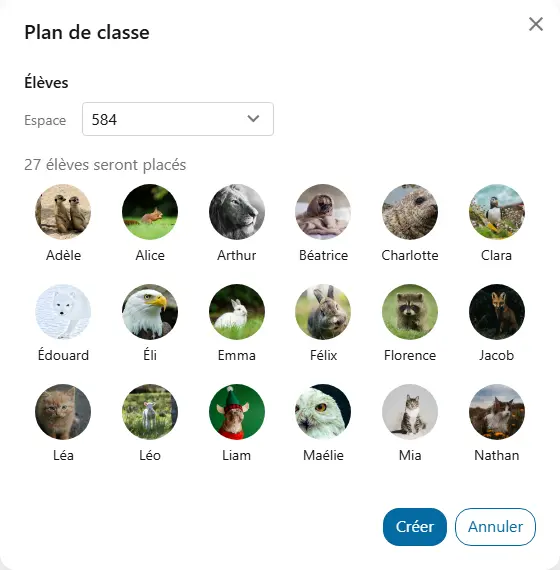
Add the Seating plan widget and choose your class: every student appears on screen with their photo and first name. Then drag each one onto their desk.
Here is your class, all set up:
Ideas for using it
- Welcome a substitute. The seating plan shows who sits where, with everyone's face: whoever replaces you calls each student by name from the very first minute.
- Set up group work. Group the students on screen before moving the desks: everyone sees where to go, and the change happens calmly.
Good to know
- A student who joins the class during the year is not added to the plan: add their Student widget and place it.
Updated October 29, 2026