shape_line

Drawing

Circle, underline and point right on the screen, over your other widgets.
In your classroom

Circle what matters

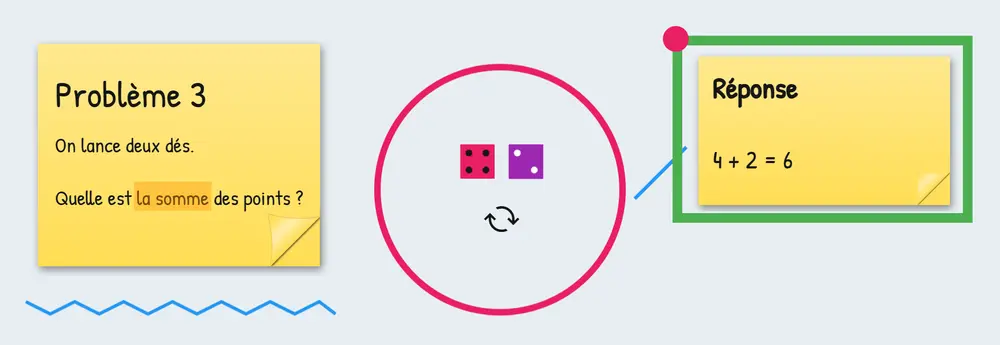
You draw a circle around a widget, an instruction or an answer.

Students know where to look.

Connect and underline

You draw a line or a freehand stroke to connect two things or underline a word.

They follow your reasoning at a glance.

Highlight without hiding

You draw a filled rectangle and lower its opacity to 50%.

They see the area and what it covers.

A screen annotated in advance

You prepare your annotations before class, on the lesson's screen.

They find it already annotated.

Your way

  • ShapeFreehand, line, rectangle, filled rectangle, circle or filled circle. You pick it when you create it, then draw on the screen.
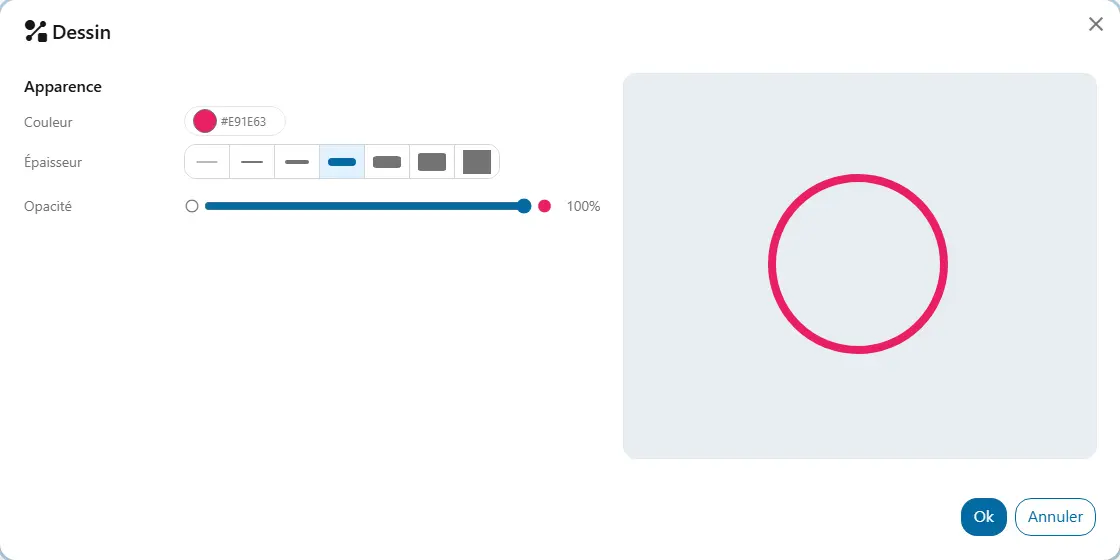
  • ColourThe shape's colour: a bright red to circle an answer, for example.
  • Thickness1, 2, 4, 8, 12, 18 or 26. For shapes that are not filled only: 8 gives a line that stands out at the back of the room.
  • OpacityAs a percentage. Lower it so a filled shape lets you see what it covers.

Good to know

  • A shape moves and rotates but does not resize: delete it and draw it again.
  • A double-click on the shape opens its settings: colour, thickness and opacity can be changed afterwards, but not the shape.
  • In presentation, shapes display as drawn. Only the screen's owners and contributors can create them.

Ready to try Cooperius?

Sign up free